
Follow this guide if you need to reset your password to access your online account.
You can reset your password at any time using the 'Forgot your password?' link on the sign-in or sign-up page. You’ll be asked to enter the email address linked to your account, and we’ll send you instructions to create a new password.
Please select the option below that applies to you:
-
If you are a registered professional with an existing HCPC account
-
If you are an applicant currently submitting an application to the HCPC
- Access your online account via the 'My account' link.
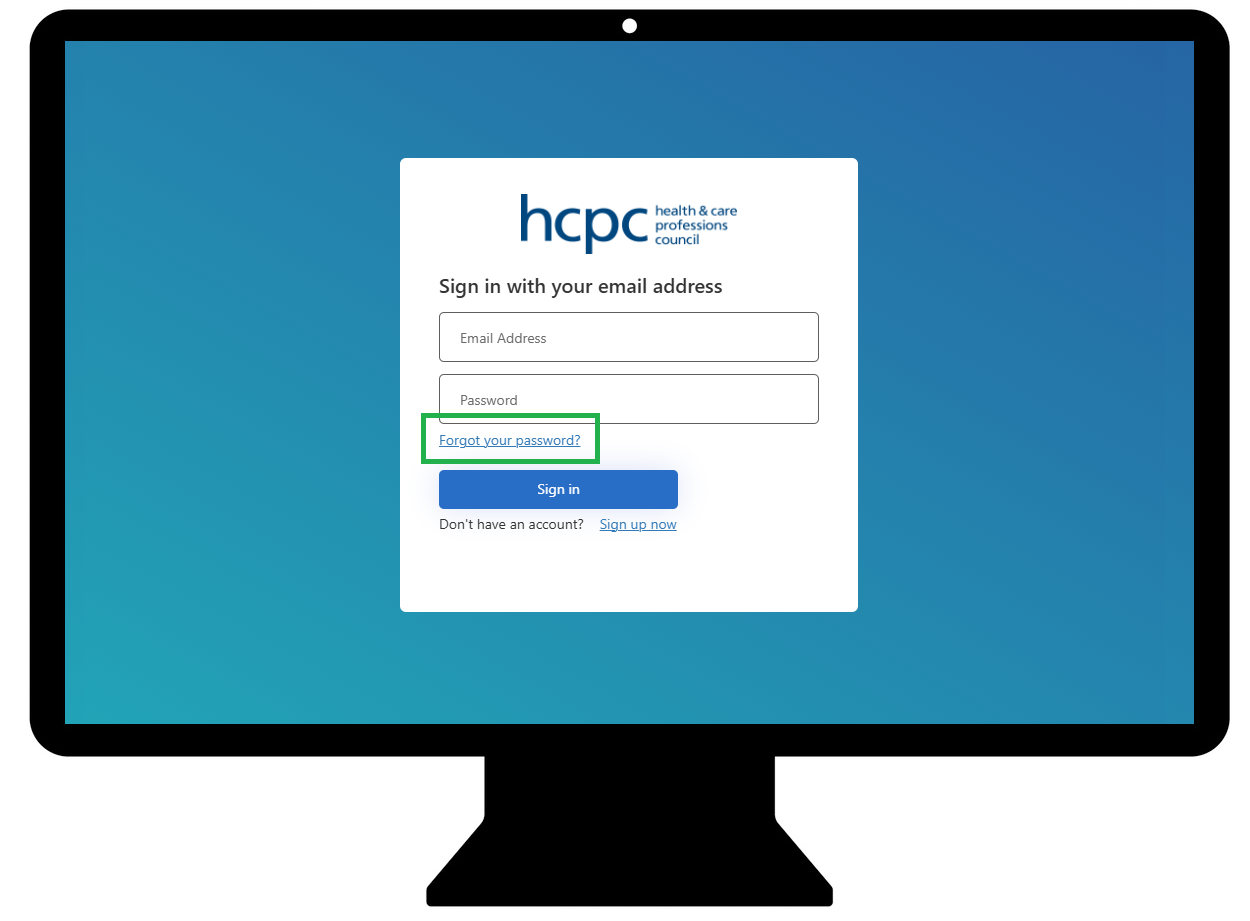
- Click the Forgot your password? link.
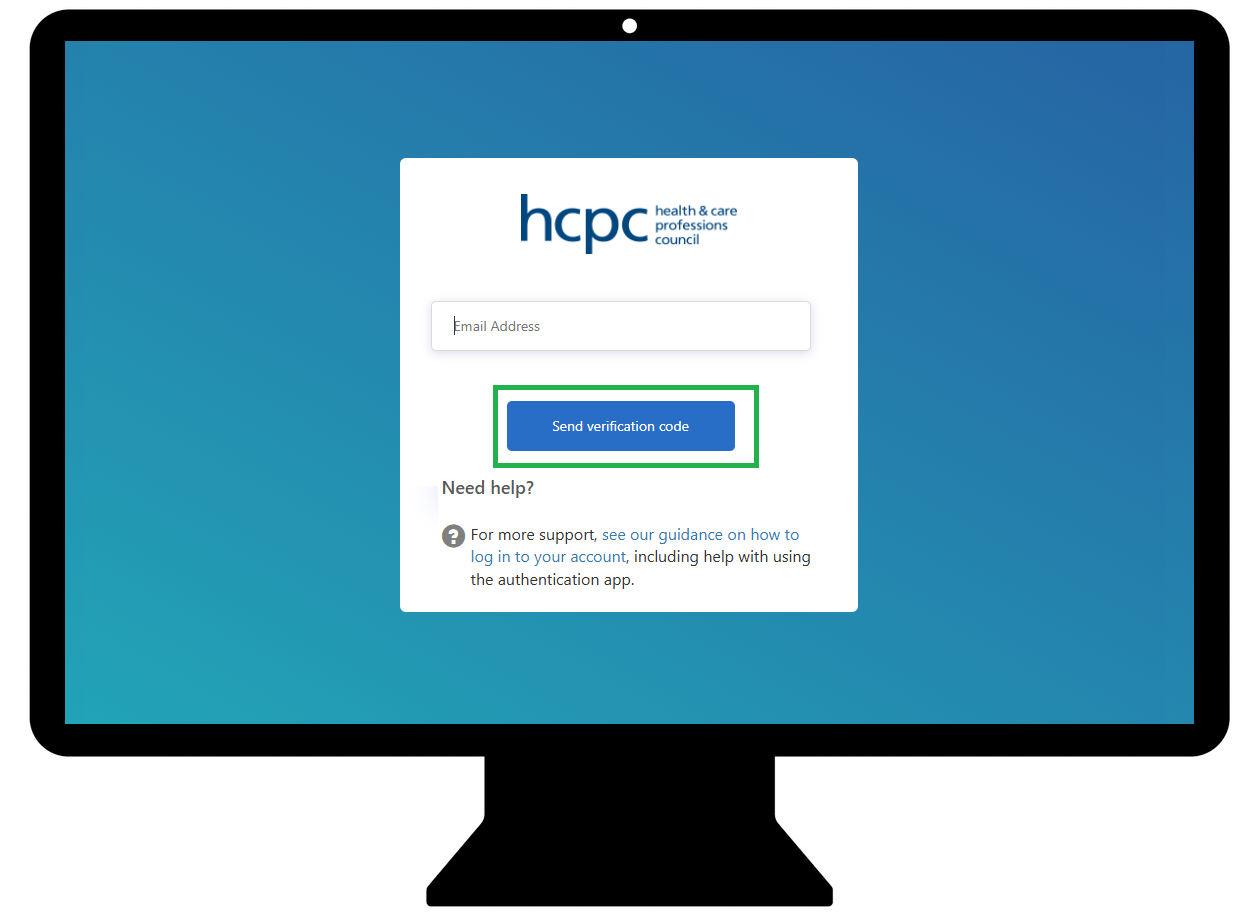
- Enter your email address and click on the Send verification code button.
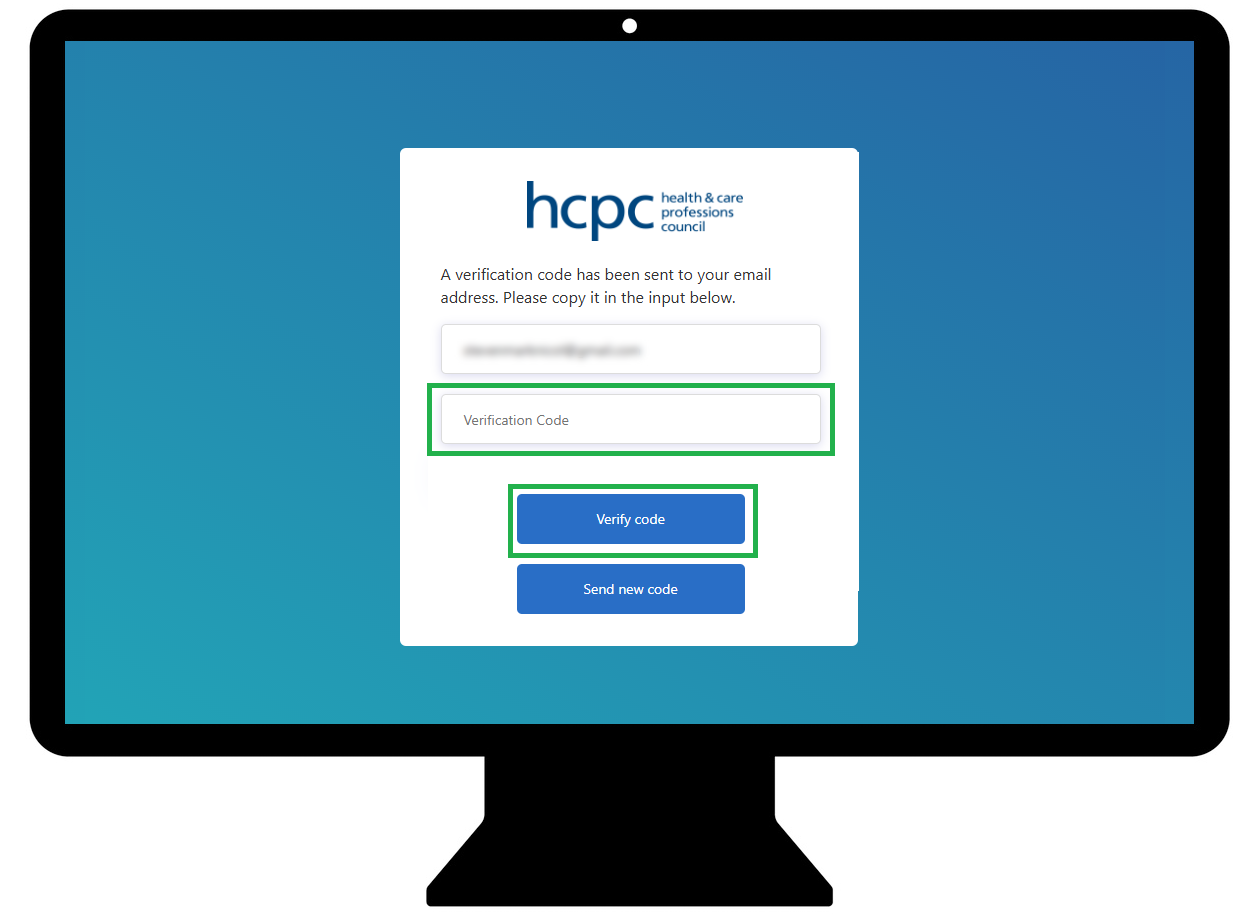
- Check your email inbox and input the email verification code. Click Verify code button to continue.
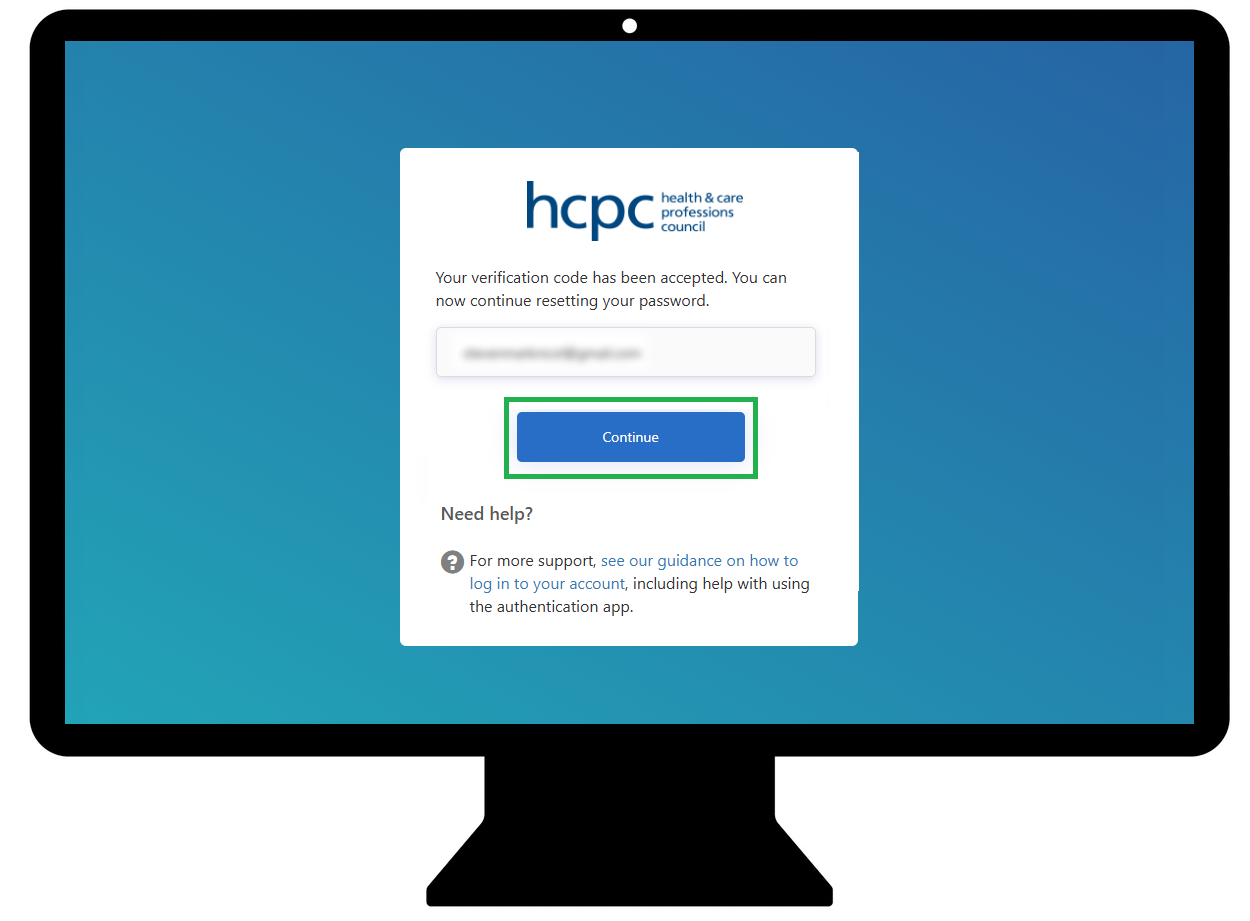
- Verification is now complete. Click the Continue button to confirm.
- We use Multi-factor authentication (MFA) to protect your data when logging into our online services. Select the MFA method to continue.
Note that this page is shown only if MFA method is not selected yet or email is selected as MFA method.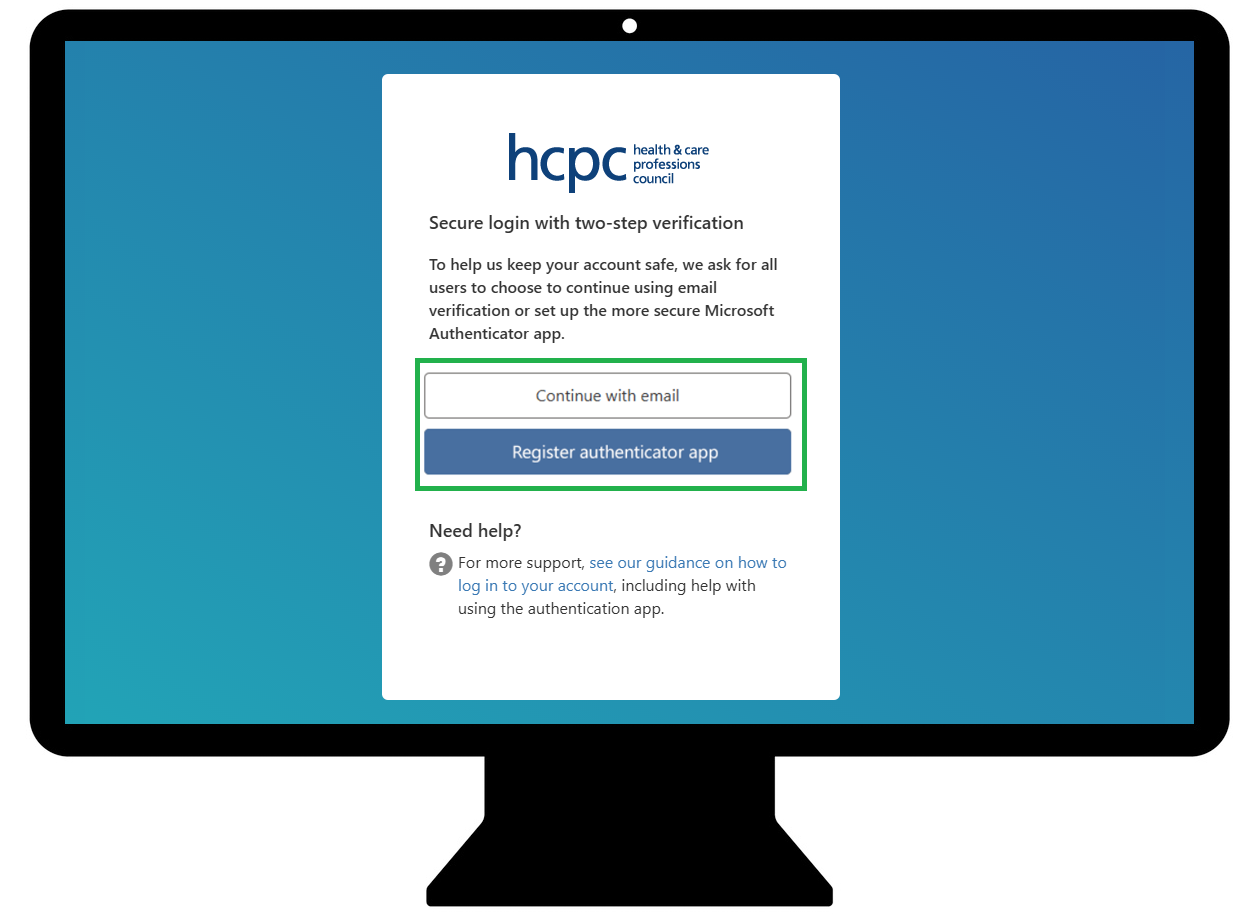
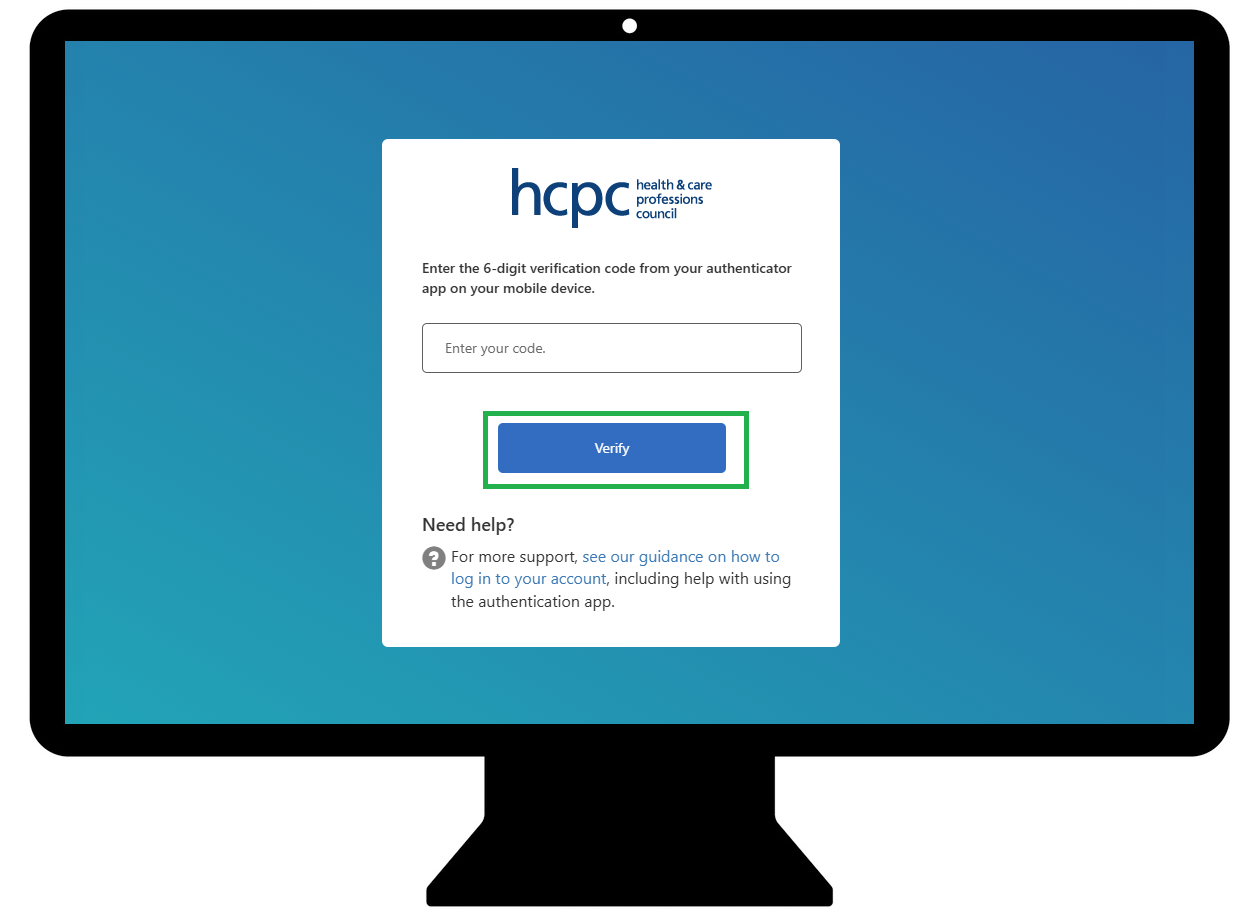
- If authenictor app is selected as MFA method, then follow the process and enter the verification code that is generated from authenicator app.
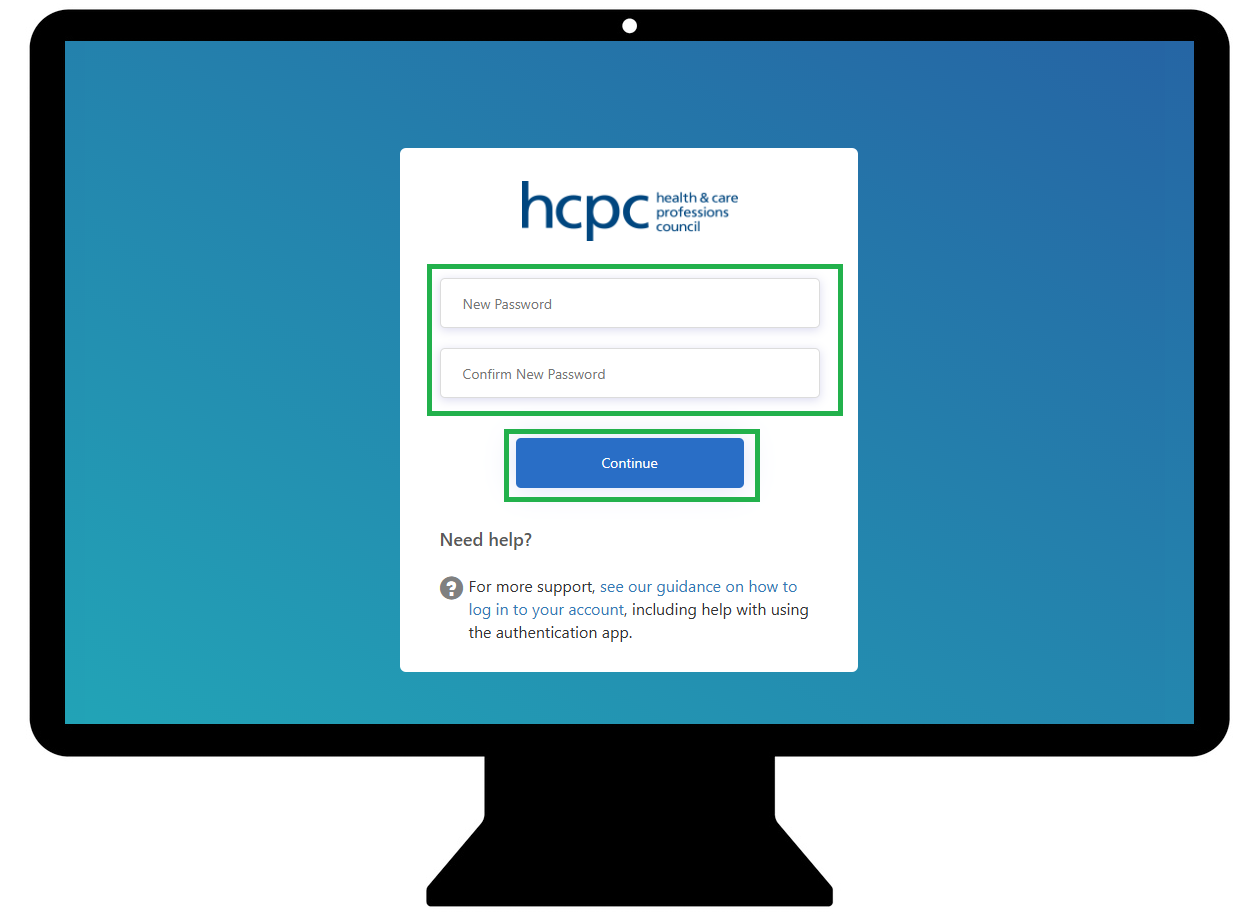
- Reset your password by entering a new one and confirm it in the following box. Click Continue to complete the process.
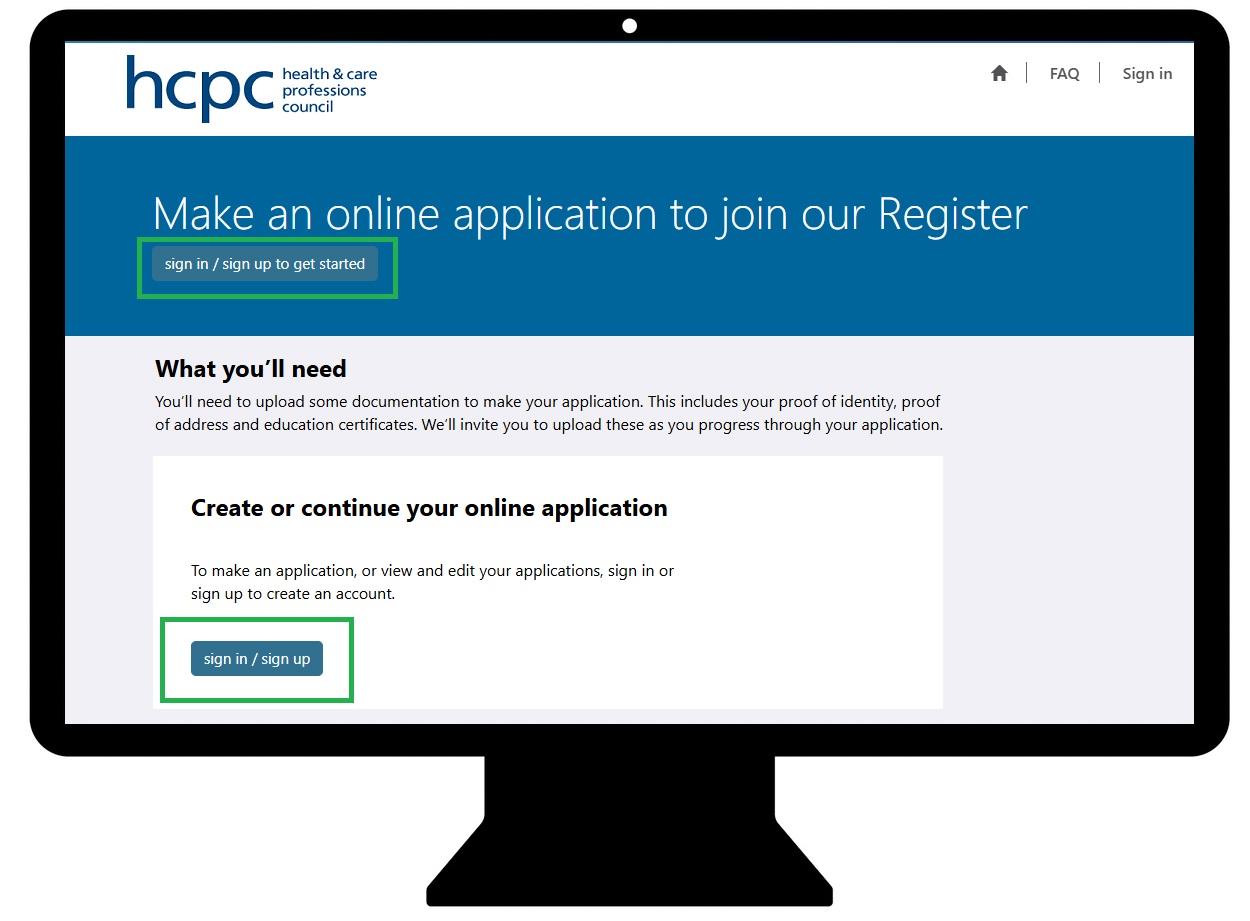
- New applicants can manage their application for registration and reset their password from here.
- Click the Sign in / sign up button to continue.
- Click the Forgot your password? link.
- Enter your email address and click on the Send verification code button.
- Check your email inbox and input the email verification code that you have received. Now cick Verify code button to continue.
- Verification is now complete. Click the Continue button to confirm.
- Reset your password by entering a new one and confirm it in the following box. Click Continue to complete the process.
- We use Multi-factor authentication (MFA) to protect your data when logging into our online services. Select the MFA method to continue.
Note that this page is shown only if MFA method is not selected yet or email is selected as MFA method. - If authenictor app is selected as MFA method, then follow the process and enter the verification code that is generated from authenicator app.
Further support


Having trouble with your online account?
For assistance with your online account, please contact our Registration team.
Tel: 44 (0)300 500 4472 (Monday to Friday, 9am-5pm)
Tudalen wedi'i diweddaru ymlaen: 15/01/2026